 CalScout
How to offer meeting times without a booking link
Send two or three specific times, spread across different days and times of day, written with the weekday, date, time zone and meeting length, and numbered so they can reply with one digit. Then keep those times free until they answer, and let the others go once they pick.
The other person reads one short message and replies, with nothing to open. The hard part is the legwork: checking several calendars for gaps, converting time zones, and keeping the options free while you wait. The steps below cover each one.
Updated November 9, 2026.
1. Start from the times you're really free
Check every calendar that can book you, such as work, personal and any shared family calendar, not just the one in front of you. Stay inside your working hours, leave a buffer after other meetings so you're not running from one call to the next, and leave out days you're travelling or out of office. A time you have to take back costs more than offering one fewer.
2. Offer two or three times, not ten
One time feels like a demand, and ten turns your message into a booking page they have to study. Two or three gives a fair chance of a fit and is short enough to answer at a glance. If none work, they'll say so, and the next round is quicker because you'll know more about their week.
3. Spread them out
Three slots on the same morning are really one option. Offer different days, and mix mornings and afternoons, so at least one lands on a free part of their week. Leave a day or two before the first one, so they have time to reply. If they're in another time zone, check that each time falls inside their working day too, not only yours.
4. Write each time so it can't be misread
- The weekday and the date: “Tue, Jan 12”, not just “Tuesday”, which could mean this week or next.
- The start and end: “10:00 – 10:30 AM” tells them the length as well.
- Your time zone, and theirs if it differs: “10:00 AM PST (1:00 PM EST)”. When it's already the next day for them, say the date in their zone too.
- A number for each: they can reply “2”, and nobody has to retype a date.
Put together, it reads like this:
Here are a few times that work for me for a 30 min meeting: 1. Tue, Jan 12 · 10:00 – 10:30 AM PST (1:00 – 1:30 PM EST) 2. Wed, Jan 13 · 2:30 – 3:00 PM PST (5:30 – 6:00 PM EST) 3. Fri, Jan 15 · 11:00 – 11:30 AM PST (2:00 – 2:30 PM EST) Just reply with the number that works best (1–3).
2 works for me!
A template you can copy and fill in:
Here are a few times that work for me for a 30-minute call:

1. [Tue, Jan 12] · [10:00 – 10:30 AM PST]  ([1:00 – 1:30 PM EST])
2. [Wed, Jan 13] · [2:30 – 3:00 PM PST]  ([5:30 – 6:00 PM EST])
3. [Fri, Jan 15] · [11:00 – 11:30 AM PST]  ([2:00 – 2:30 PM EST])

Reply with a number, or suggest another time if none of these work.
5. Keep those times free until they reply
The usual way this goes wrong: you offer Tuesday at 10, someone else books Tuesday at 10 an hour later, and when they reply “Tuesday works” you have to start again. Add a temporary hold for each time you offered, named so you'll recognise it, such as “Hold: Priya”. Mark it tentative if your calendar allows. Depending on your calendar and its sharing settings, colleagues and scheduling tools may see these holds as busy, which is usually what you want.
6. When they pick one, let the others go
Turn the chosen hold into the meeting, and delete the other holds straight away so they don't block your week. If you haven't heard back in two or three days, release them all. You can always send new times if they reply later.
When a booking link is the better choice
If many people book you, often people you haven't met, such as for sales calls, interviews or office hours, a booking link saves everyone time, because nobody waits for a reply. Offered times work best for one-off meetings, for people you'd rather not ask to use a tool, and when you want to choose which parts of your week to give away. See CalScout vs Calendly for a side-by-side comparison.
Offering times with CalScout
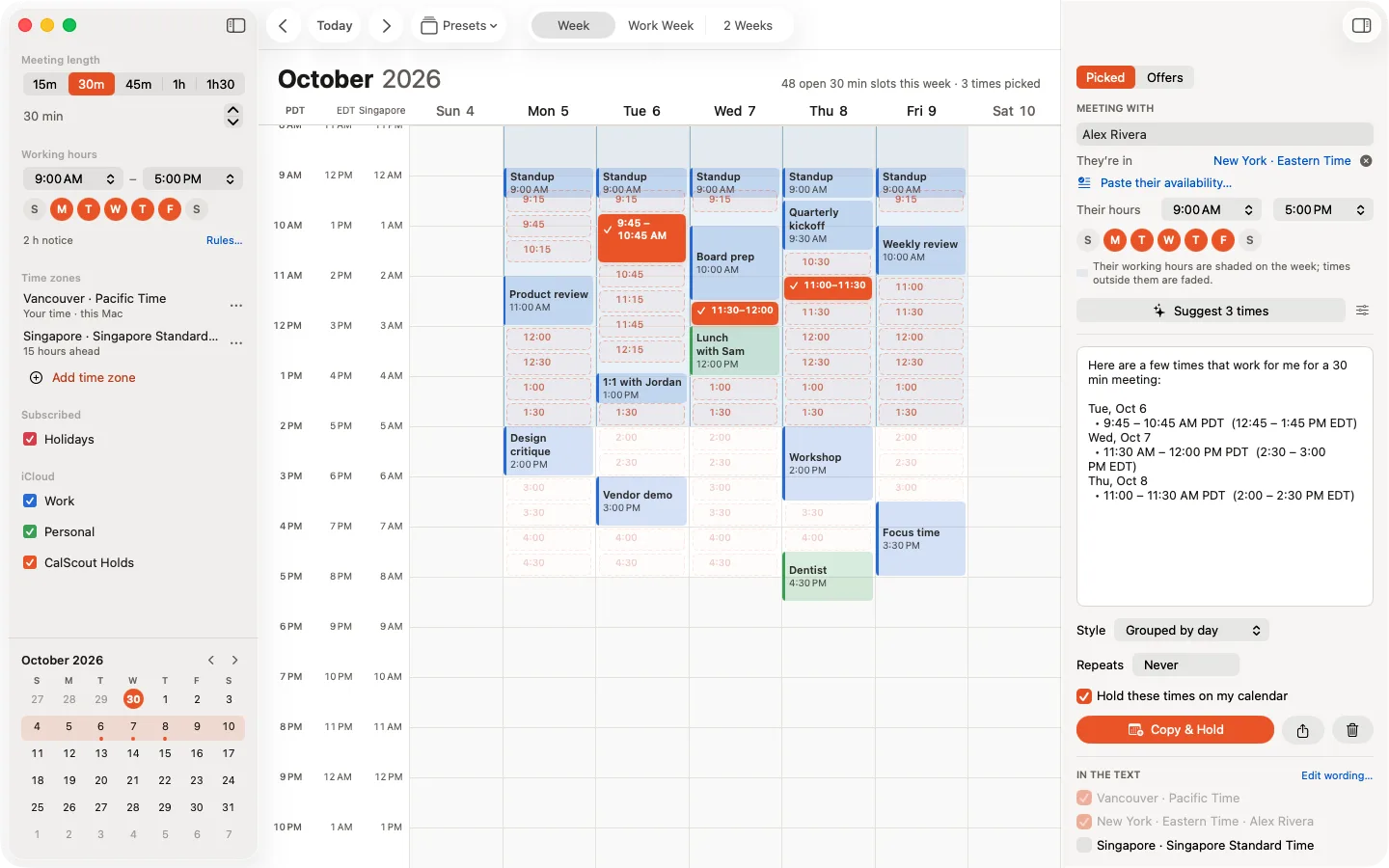
The slow part by hand is the copying: reading times off your calendar, typing them into a message, converting time zones, and making a hold event for each one. CalScout removes all of it, on iPhone, iPad and Mac.
You pick on the week itself. CalScout shows your open slots across all your calendars, at the meeting length you need, already inside your working hours and buffers. Click or tap a slot to offer it, or drag across several; press Suggest if you'd like it to choose a well-spread set. One press of Copy & Hold then writes the message and holds every option on your calendar.
| Step | By hand | With CalScout |
|---|---|---|
| Find free times | Check each calendar for gaps | Open times across all your calendars, on one week |
| Choose the options | Weigh up the gaps | Click or drag, or press Suggest |
| Write the message | Type each date and time | Written for you |
| Time zones | Convert each time | Shown in both zones once you add theirs |
| Hold the times | Create a hold event for each | All held with the same press |
| They pick one | Edit one hold into the meeting, delete the rest | Press Confirm; the other holds disappear |
| No reply | Remember to delete the holds | The offer lapses after three days (you can change this), and its holds go |
Spend less time scheduling
CalScout is free on the App Store, with an optional one-time Pro upgrade you can try free for 14 days. Questions? See the support page.